Getting started safely
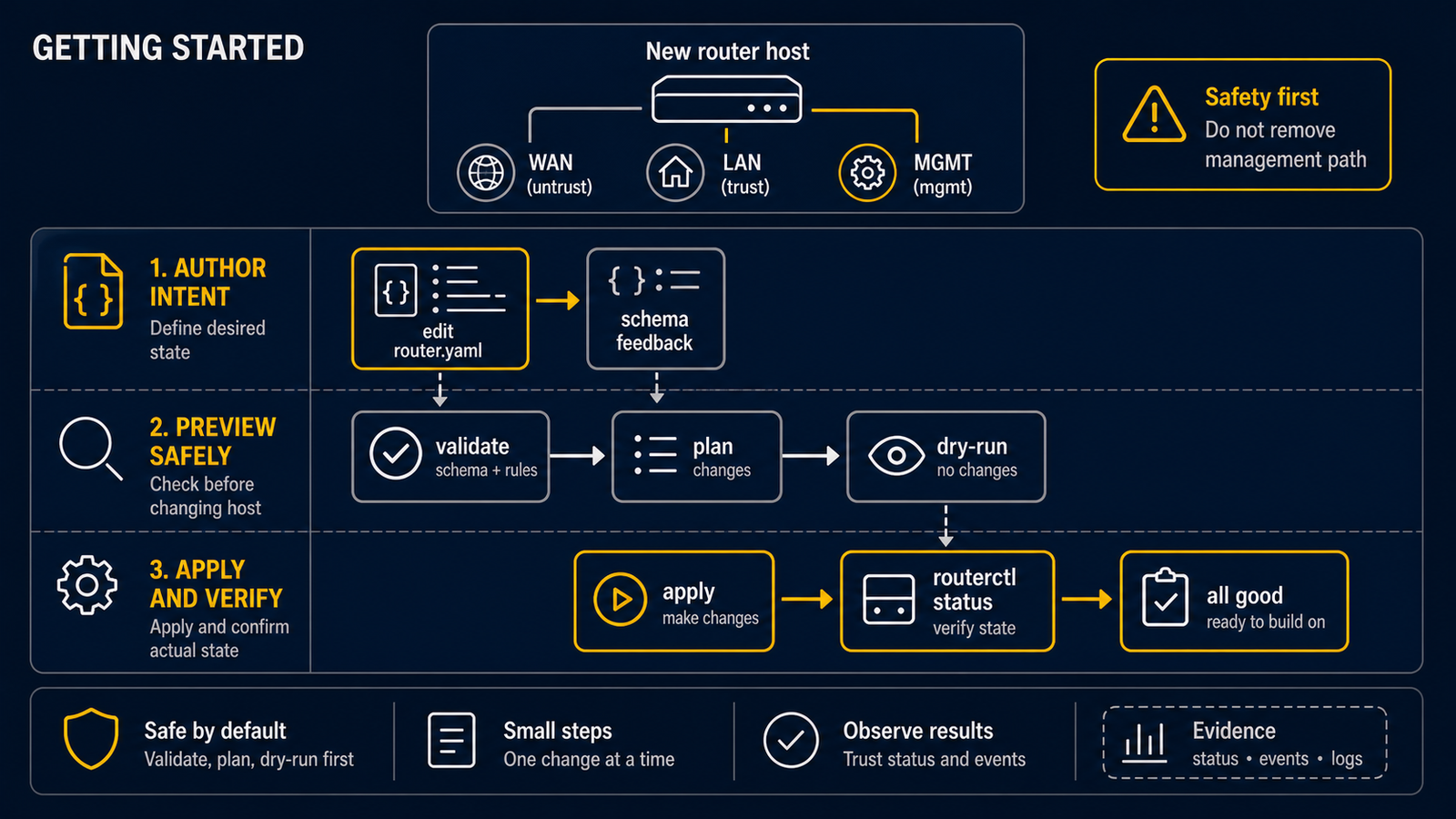
This is the first route through routerd for someone learning how routers work. It deliberately starts with a file check, not with a change to a network.
Use an isolated Ubuntu Server VM or a spare computer. Keep a hypervisor, serial, or physical console open, or keep a separate management NIC that this configuration does not change. Do not start by changing the only router for your home, school, or work network.
routerd apply --once and routerd serve can change network state. The first
two checks below do not commit network changes when you use the temporary paths
shown here.
Before continuing, read Network basics. It explains WAN,
LAN, DHCP, DNS, NAT, and the /24 notation used in the examples.
1. Install on an Ubuntu Server lab host
Ubuntu Server is the primary, most exercised target. Install a release archive with Install and upgrade. FreeBSD and NixOS have groundwork and selected integration paths; they are not the recommended first lab target.
2. Find the real interface names
ip -br link
Examples often use ens18 for WAN and ens19 for LAN. Those are placeholders,
not universal names. Do not adopt the interface that carries your only SSH
connection during a first experiment.
3. Start with a small description
Save this as first-router.yaml. It only describes two existing interfaces;
the next tutorial adds a complete LAN DHCP and NAT lab.
apiVersion: routerd.net/v1alpha1
kind: Router
metadata:
  name: first-router
spec:
  resources:
    - apiVersion: net.routerd.net/v1alpha1
      kind: Interface
      metadata:
        name: wan
      spec:
        ifname: ens18 # replace with the lab WAN interface
        adminUp: true
        managed: false
        owner: external

    - apiVersion: net.routerd.net/v1alpha1
      kind: Interface
      metadata:
        name: lan
      spec:
        ifname: ens19 # replace with the lab LAN interface
        adminUp: true
        managed: true
        owner: routerd
Each item has a kind (what it is), a metadata.name (the short name used by
other items), and a spec (the desired settings).
4. Check the YAML without a running daemon
routerd validate reads the file directly. It is the right first command when
routerd.service is not running yet.
routerd validate --config first-router.yaml
5. Run a non-destructive preview
Use temporary state, ledger, and status paths. This exercises loading, dependency ordering, and rendering without applying the network change or writing routerd's normal state files.
workdir=$(mktemp -d)
routerd apply --config first-router.yaml --once --dry-run --skip-service-manager \
  --state-file "$workdir/state.db" \
  --ledger-file "$workdir/ledger.db" \
  --status-file "$workdir/status.json"
Inspect the output and remove the temporary directory when you are done:
rm -rf "$workdir"
6. Stop here before a live change
The small file above only names interfaces; it does not provide DHCP, NAT, or Internet access. Leave the service stopped and continue to Bring up the first lab router for a complete, reviewed configuration, service startup, status checks, and a LAN client test.
Next steps
- Bring up the first lab router — DHCP, DNS advertisement, and IPv4 NAT in an isolated lab
- LAN-side services — local DNS, DHCPv6, RA, and NTP
- WAN-side services — DHCPv6-PD, PPPoE, and DS-Lite